Grab Points
This is a step-by-step guide on setting up your grab points
Setting up grab points
After creating a grabbable object, your objects hierarchy should look something like this:

As you might've noticed, the grabbable has kindly provided us with two grab points. Open one of them and let's see what's up.
Additional grab points can be created by pressing the Add Grab Point button found on the Grabbable component.
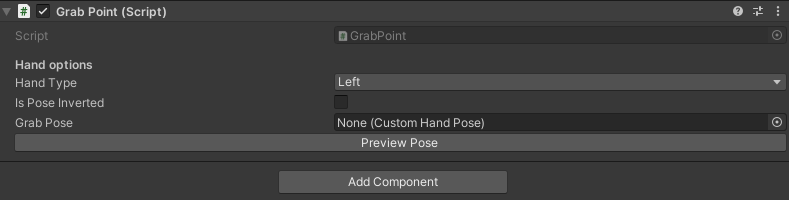
Clicking on preview pose will instantiate a preview hand and focus on our grab point, disabling the selection of all other gameobjects.
Note that if you've already created a grab pose, you can always assign it through the inspector under Grab Pose.
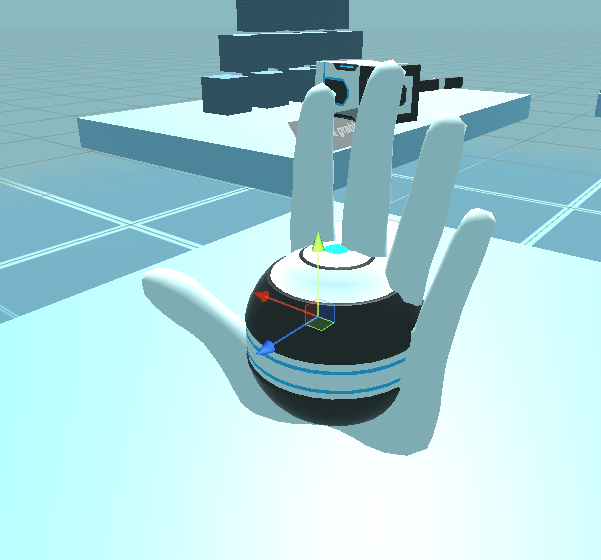
Simply adjust the position and rotation of the grab point by manipulating its transform in the editor or using the scene positional and rotational gizmos. This is enough if you want to create an object with just grab points and no hand posing.
Be careful not to move or rotate the actual preview hand, as that will achieve nothing. Always move and rotate the grab points.